Why Is My Device Connecting at USB 2.0 Speed? How to Diagnose a Slow USB-C Connection
Your SSD or iPhone shows 480 Mbps when it should hit 5 Gbps. Usually a USB 2.0 cable - but it can be the port or device. How to diagnose which.

You plug in an external SSD that should transfer at 5 Gbps or faster - and your Mac reports High Speed (480 Mbps). The cable looks fine. Both ends are USB-C. Nothing appears to be wrong. But you’re getting a tenth of the expected bandwidth.
This scenario is almost always caused by the cable. Here’s how to diagnose it systematically, and what to do about it.
What “480 Mbps” actually means
USB-C connections negotiate their speed when a device is plugged in. The speeds you’ll see in USB Connection Information or System Information map to USB generations:
| Speed shown | USB generation | Typical use case |
|---|---|---|
| 480 Mbps (High Speed) | USB 2.0 | Keyboards, mice, slow hubs |
| 5 Gbps (SuperSpeed) | USB 3.2 Gen 1 | External HDDs, older SSDs |
| 10 Gbps (SuperSpeed+) | USB 3.2 Gen 2 | Modern NVMe SSDs, fast hubs |
| 20 Gbps | USB 3.2 Gen 2×2 | High-end docks |
| 40 Gbps | USB4 / Thunderbolt 4 | TB docks, eGPUs |
When a USB 3.x device shows 480 Mbps, it means the entire USB 3.x negotiation failed and both sides fell back to USB 2.0 compatibility mode - the baseline that every USB device speaks, no matter how fast it actually is.
The most common cause: a USB 2.0 cable
USB 3.x data requires dedicated SuperSpeed signal wires inside the cable. A USB 2.0 cable physically doesn’t have them. When your Mac and device try to negotiate USB 3.x and find no SuperSpeed path through the cable, they drop back to USB 2.0. The devices themselves are fine - they just can’t speak USB 3 through that cable.
This is why a device that previously connected at 5 Gbps might suddenly show 480 Mbps: the cable changed. Even if you didn’t consciously change cables, borrowing a “USB-C cable” from a different drawer (a phone charger, a laptop charger cable, a hub’s included cable) is enough. Most USB-C cables in circulation are USB 2.0 only.
A note on high-wattage cables
Don’t assume a high-wattage cable is fast for data. A 240W USB-C charging cable can have an eMarker chip that declares full EPR charging capability - and simultaneously declare USB 2.0 only for data. These two specs are entirely independent . “240W” on the packaging says nothing about data speed.
How to confirm the cable is the problem
Step 1: Check the negotiated speed
In USB Connection Information, click the device row to expand it. The Speed field shows the negotiated rate. If you see High Speed (480 Mbps) for a device you know is USB 3.x capable, the USB 3 path is broken somewhere.
Step 2: Check the device’s known capability
The same detail row shows bcdUSB or Version - the USB revision the device is reporting. A device reporting USB 3.x while connecting at 480 Mbps is a strong confirmation that the cable is the bottleneck, not the device. (Note: some devices report USB 2.0 in their descriptor when forced to USB 2.0 fallback - the version field alone isn’t definitive.)
A more reliable signal: has this device previously connected at a higher speed on this Mac? If USB Connection Information has a speed history for the device showing a previous 5 Gbps or 10 Gbps connection, it will alert you: "[Device] limited to USB 2.0 - try a different cable." That notification is the app confirming the cable is the bottleneck.
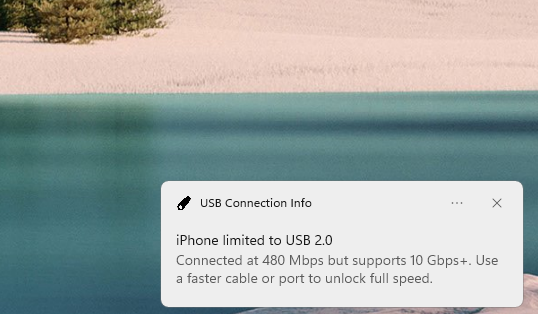
On Windows you don’t need a history at all. The hub port reports what the attached device supports, so USB Connection Information for Windows shows the gap on the very first connection - 480 Mbps (10 Gbps+ capable) in the menu - and, with the cable alert turned on, raises a notification:
Step 3: Swap the cable
Try a cable you know is USB 3.x capable - the one that originally came with your SSD, or one explicitly labelled “USB 3.2 Gen 2” or “10 Gbps”. If the speed jumps to 5 Gbps or 10 Gbps with the new cable, the original cable was the issue.
Other causes (less common)
If swapping a known-good USB 3.x cable doesn’t fix it, work through the rest of the diagnostic:
The port
Not all USB-C ports support USB 3.x speeds. On a Mac:
- All USB-C ports on modern MacBooks support at least USB 3.2 Gen 2 (10 Gbps)
- USB-C ports on some monitors, hubs, and docks carry only USB 2.0 - they’re for power or HID devices, not storage
Try a different port on the Mac directly. If the Mac’s port is the issue, you’ll see the same 480 Mbps with any cable.
The hub or dock
If the device is plugged into a hub or dock rather than directly into the Mac, the hub or dock adds its own speed ceiling. A hub that only supports USB 3.2 Gen 1 caps all its ports at 5 Gbps regardless of the cable or device capability. A hub connected via USB 2.0 to the Mac limits everything downstream to 480 Mbps.
USB Connection Information shows the connection hierarchy - a device’s parent device tells you whether it’s going through a hub or dock, and at what speed that hub connects upstream to the Mac.
The device
Some devices conditionally downgrade their connection. An iPhone, for example, connects at USB 2.0 (480 Mbps) in most scenarios and only switches to USB 3.x speeds when a sufficiently fast cable is detected on a sufficiently capable port. See Is my iPhone connected via USB 2.0 or USB 3? for the specifics.
Some older external drives present as USB 2.0 to maximise compatibility, even when the enclosure supports USB 3.x. Check the manufacturer’s spec sheet.
A damaged cable
Physical damage - a bent connector, a pinched cable, oxidised contacts - can knock out the SuperSpeed lines while leaving the USB 2.0 lines functional. The result looks exactly like a USB 2.0 cable. If a known-good cable works and the original cable doesn’t, the original cable may be damaged even if it looks fine externally.
Quick diagnostic flowchart
Device shows 480 Mbps
        │
        ▼
  Swap cable for a known USB 3.x cable
        │
   Fixes it? ──── YES ──► Cable was the problem. Replace it.
        │
        NO
        │
        ▼
  Try a different USB-C port on the Mac directly
        │
   Fixes it? ──── YES ──► Original port is the bottleneck.
        │
        NO
        │
        ▼
  Is the device going through a hub or dock?
        │
   YES ─► Try the device direct to Mac. Fixes it?
        │      YES ──► Hub/dock is the bottleneck.
        │      NO  ──► Keep investigating.
        NO
        │
        ▼
  Check device spec - is it actually USB 3.x capable?
        │
   NO ──► USB 2.0 is correct for this device. No problem.
        │
       YES
        │
        ▼
  Cable or device may be physically damaged.
  Try a second known-good cable. If still 480 Mbps,
  the device's USB 3.x port may be faulty.
The fix
In the overwhelming majority of cases, the answer is replace the cable with one explicitly rated for USB 3.2 or faster.
What to look for on the packaging:
- “USB 3.2 Gen 2” or “10 Gbps” (most common for external SSDs)
- “USB 3.2 Gen 1” or “5 Gbps” (sufficient for hard drives and most older SSDs)
- “Thunderbolt 3/4” or “USB4” (highest tier - also 100W+ charging)
What to avoid:
- Any cable with only wattage listed and no data speed (common for 240W charging cables)
- Cables described only as “USB-C to USB-C” with no speed specification
- “Charge and sync” cables without an explicit speed number
A good USB 3.2 Gen 2 cable costs $8–15 for 1m. A Thunderbolt 4 cable that handles both 40 Gbps and 100W charging is $25–50 and eliminates the problem permanently for any use case.
The takeaway
A USB-C device stuck at 480 Mbps is almost certainly connected through a cable that lacks the SuperSpeed wires USB 3.x requires. The cable might be a phone charger, a laptop charger, or - counterintuitively - a high-wattage cable where charging and data specs were engineered independently. USB Connection Information identifies the issue by comparing the current speed against the device’s recorded history, and shows you the full connection hierarchy so you can trace whether the bottleneck is in the cable, the port, or something between them.
Related guides
- How to check USB status on Mac and Windows
- USB-C charging speed vs data speed: why they’re independent
- USB-C cables with and without eMarker chips
- How to check USB-C cable speed
- Is my iPhone connected via USB 2.0 or USB 3?
- Thunderbolt 4 vs USB4: Identifying Your Connection Type
For real-time visibility into other kinds of connections your Mac makes, see the rest of the Connection Information suite - audio , displays , and network .