How to Check USB Status on Mac and Windows
See what's connected to your USB ports and the state of each connection - negotiated speed, power draw, port assignment - on macOS and Windows.

Your computer knows a great deal about every USB device attached to it: the speed the link negotiated, how much current the device asked for, which controller and port it landed on, and who manufactured it. Almost none of that is visible in normal use. You get an icon on the desktop, or nothing at all.
This guide shows how to read the actual status of your USB connections on macOS and Windows - what’s available built in, what the limitations are, and how to get a live view.
What “USB status” actually consists of
When people go looking for USB status, they’re usually after one of five things:
| What you want to know | Why it matters |
|---|---|
| Negotiated speed | The single most useful number. Reveals cable and port bottlenecks instantly. |
| Power draw / delivery | Whether a device is getting enough current, or what a charger is supplying. |
| Port and hub assignment | Which physical port, and what else is sharing its bandwidth. |
| Device identity | Vendor and product ID, serial number - what the thing actually is. |
| Connection events | Whether a flaky device is silently dropping and reconnecting. |
Each platform exposes a different subset. Here’s how to get at them.
Checking USB status on macOS
System Information (built in)
Apple menu → About This Mac → More Info → System Report → USB in the sidebar.
You get a tree of every USB device grouped by bus and hub. Selecting one shows:
- Speed - “Up to 480 Mb/sec”, “Up to 5 Gb/sec”, “Up to 40 Gb/sec”
- Current Available and Current Required - power budget in milliamps
- Vendor ID / Product ID - hardware identity
- Serial Number, Manufacturer, Location ID
This is genuinely thorough. Its limitation is that it’s a snapshot - it does not update. Plug in a different cable and you must close and reopen the whole report to see the change, which makes swap-testing tedious.
Terminal (built in)
system_profiler SPUSBDataType
Prints the same information as text. Useful for scripting or pasting into a support thread. Add -json for structured output.
A live view
USB Connection Information puts the same data in the menu bar and updates it as devices connect and disconnect. The practical difference is swap-testing: you can change a cable and watch the speed change in place, rather than reopening System Report between every attempt.
On macOS it also reads what the built-in tools don’t surface at all - the full USB-C Power Delivery profile list a charger advertises, the contract actually negotiated, and live wattage.
What the Mac speed labels mean
| macOS shows | Actual speed | Standard |
|---|---|---|
| Up to 12 Mb/sec | 12 Mbps | USB 1.1 |
| Up to 480 Mb/sec | 480 Mbps | USB 2.0 |
| Up to 5 Gb/sec | 5 Gbps | USB 3.0 / 3.2 Gen 1 |
| Up to 10 Gb/sec | 10 Gbps | USB 3.1 / 3.2 Gen 2 |
| Up to 20 Gb/sec | 20 Gbps | USB 3.2 Gen 2×2 |
| Up to 40 Gb/sec | 40 Gbps | USB4 / Thunderbolt |
Checking USB status on Windows
Device Manager (built in)
Right-click Start → Device Manager → View menu → Devices by Connection.
This is the important step most people miss. The default alphabetical view tells you nothing about topology; Devices by Connection shows the real tree - which controller, which hub, which device hangs off what.
What Device Manager gives you: hierarchy, driver state, and whether a device is erroring. What it does not give you: the negotiated link speed. There’s no speed column.
USBView (free, from Microsoft)
USBView ships with the Windows SDK and is also distributed standalone. It shows per-port detail including the device descriptor and the port’s supported speed - considerably more than Device Manager. It’s a developer tool, so the presentation is dense, and like System Information on the Mac it’s a snapshot rather than a live view.
A live view
USB Connection Information for Windows shows the negotiated speed per device from the system tray, updating as you plug and unplug. Because Windows reports what each port and device supports, it can also show when a device is running below its capability - 480 Mbps (10 Gbps+ capable) - along with the port number, whether it’s USB-C, the hub or dock it’s connected through, and any port fault such as overcurrent or not enough power.
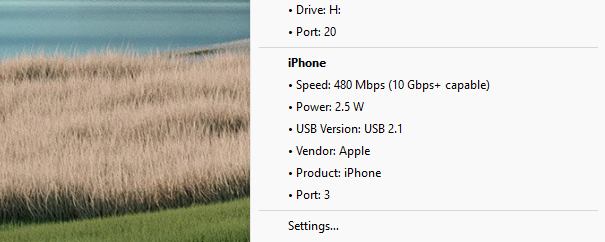
Optional alerts turn those readings into Windows notifications: a cable limiting a device’s speed, a device connecting slower than it has before, a port fault, or a disconnect.
One honest limitation to note: Windows does not expose USB-C Power Delivery detail or cable e-marker data to applications. Windows reports the power a device requests from the port, but live power draw and charger profile analysis are macOS capabilities today. Speed, identity, and topology are available on both.
What the Windows speed labels mean
| Windows shows | Actual speed |
|---|---|
| Full-Speed | 12 Mbps |
| High-Speed | 480 Mbps |
| SuperSpeed | 5 Gbps |
| SuperSpeed+ | 10 Gbps |
| SuperSpeed+ 20Gbps | 20 Gbps |
| USB4 | 20 or 40 Gbps |
Reading the result: three common diagnoses
“My drive shows 480 Mbps but it’s a 10 Gbps drive”
The cable is the cause about nine times out of ten. USB-C cables carry no visual indication of their speed tier, and the one bundled with a phone is almost always USB 2.0. Swap it for a cable that explicitly states a Gbps figure, then re-check. Full procedure in device connecting at USB 2.0 speed .
“Two identical-looking ports behave differently”
Completely normal. Manufacturers routinely wire one USB-C port for Thunderbolt/USB4 and another for USB 3.2 or even USB 2.0, with no external marking. Check the status of the same device on each port and use the faster one for storage.
“The device disconnects intermittently”
Look at the topology view. If several power-hungry devices share one hub or controller, the port’s current budget can be exceeded, causing drops under load. Move the device to a port on a different controller, or use a powered hub.
The underlying point
Every one of these questions has a definite answer that your operating system already knows. USB feels unreliable mostly because that answer is buried four levels deep in a system report that doesn’t refresh - so people end up guessing, swapping cables at random, and blaming the device.
Read the negotiated speed first. It turns “this feels slow” into a specific, fixable fact.
USB Connection Information exists to keep that number one click away on both Mac and Windows - but everything above is achievable with built-in tools, and the diagnostic reasoning is the same either way.
Related guides
- How to check USB-C cable speed
- Why is my device connecting at USB 2.0 speed?
- USB-C eMarker chips explained
- Why is my Mac charging slowly? Monitoring USB-C Power Delivery
- USB Reference Guide - versions, connectors, and power
For real-time visibility into other kinds of connections your computer makes, see the rest of the Connection Information suite - audio , displays , and network .